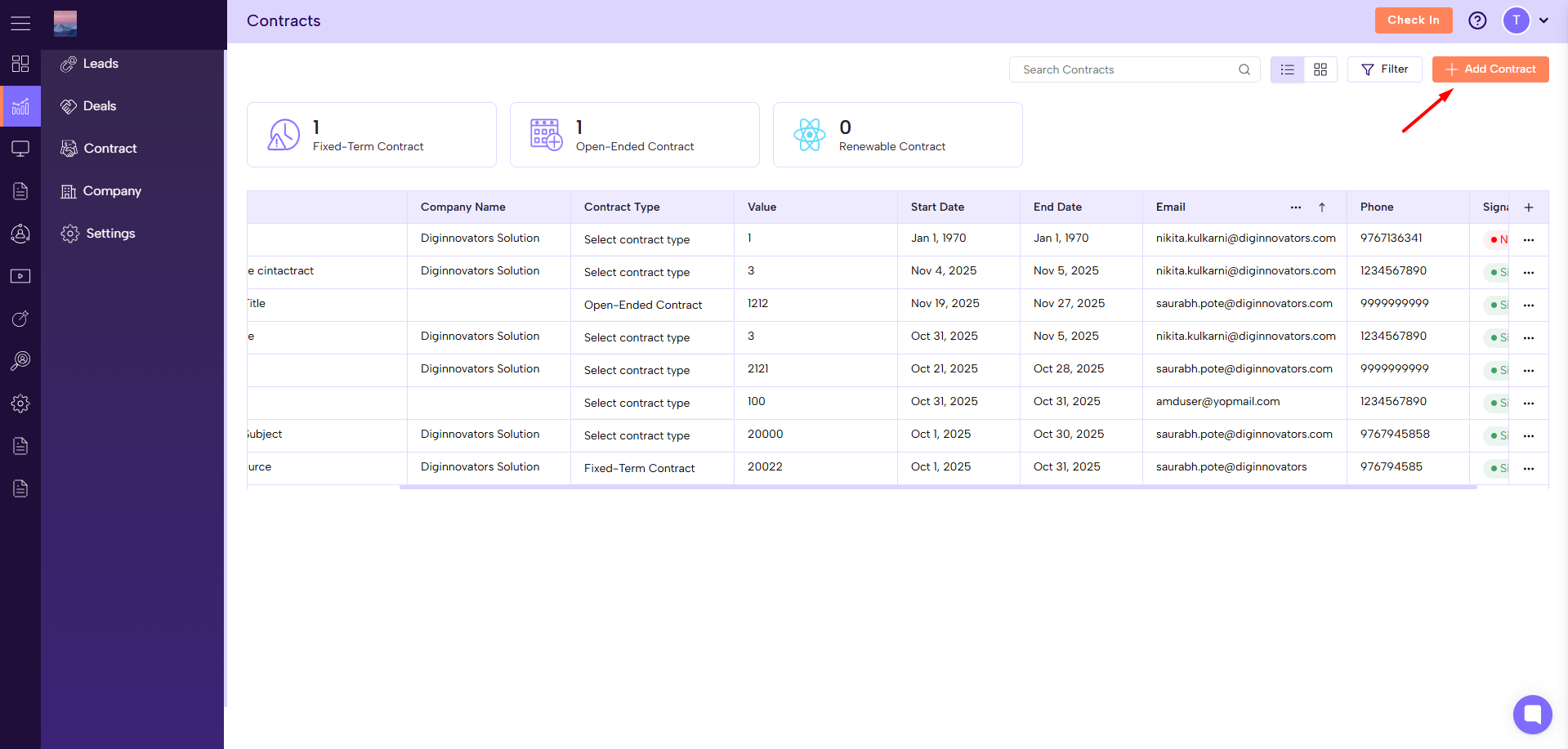
Go to Sales Module → Contracts Section
Click on the “Add Contract” button.
Enter Contract Details
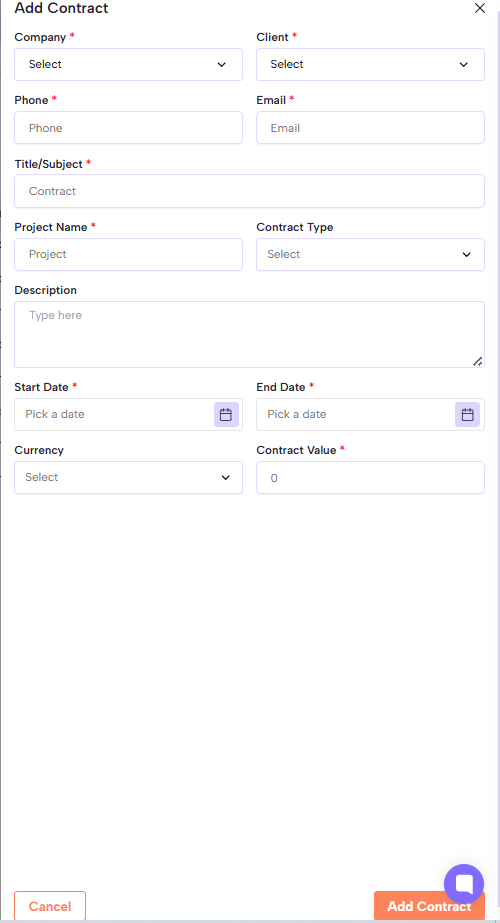
Company* – Select the company associated with the contract.
Client* – Choose the client’s name from the list.
Phone* – Enter the client’s phone number.
Email* – Provide the client’s email address.
Title/Subject* – Add a relevant title or subject for the contract.
Project Name* – Select or enter the project linked to this contract.
Contract Type – Choose the type of contract (e.g., fixed, hourly, retainer).
Description – Add a brief summary or notes about the agreement.
Start Date* – Pick the date when the contract begins.
End Date* – Select the expected contract completion or renewal date.
Currency – Choose the currency in which the contract value is defined.
Contract Value* – Enter the total value or budget for the contract.
Add Attachments
Upload signed agreements, related documents, or supporting files.
Save the Contract
After filling all required (*) fields, click “Add Contract” to save.
The new contract will appear in the Contracts list for tracking and management.
Adding contracts in a structured way ensures proper record-keeping, easier access, and timely renewals. It improves transparency, accountability, and helps maintain long-term client trust.
