The Add Company page allows you to create a new company profile by entering all key information such as company name, contact details, industry type, and address. This ensures that all business records are properly maintained and linked with relevant clients, deals, and contracts.
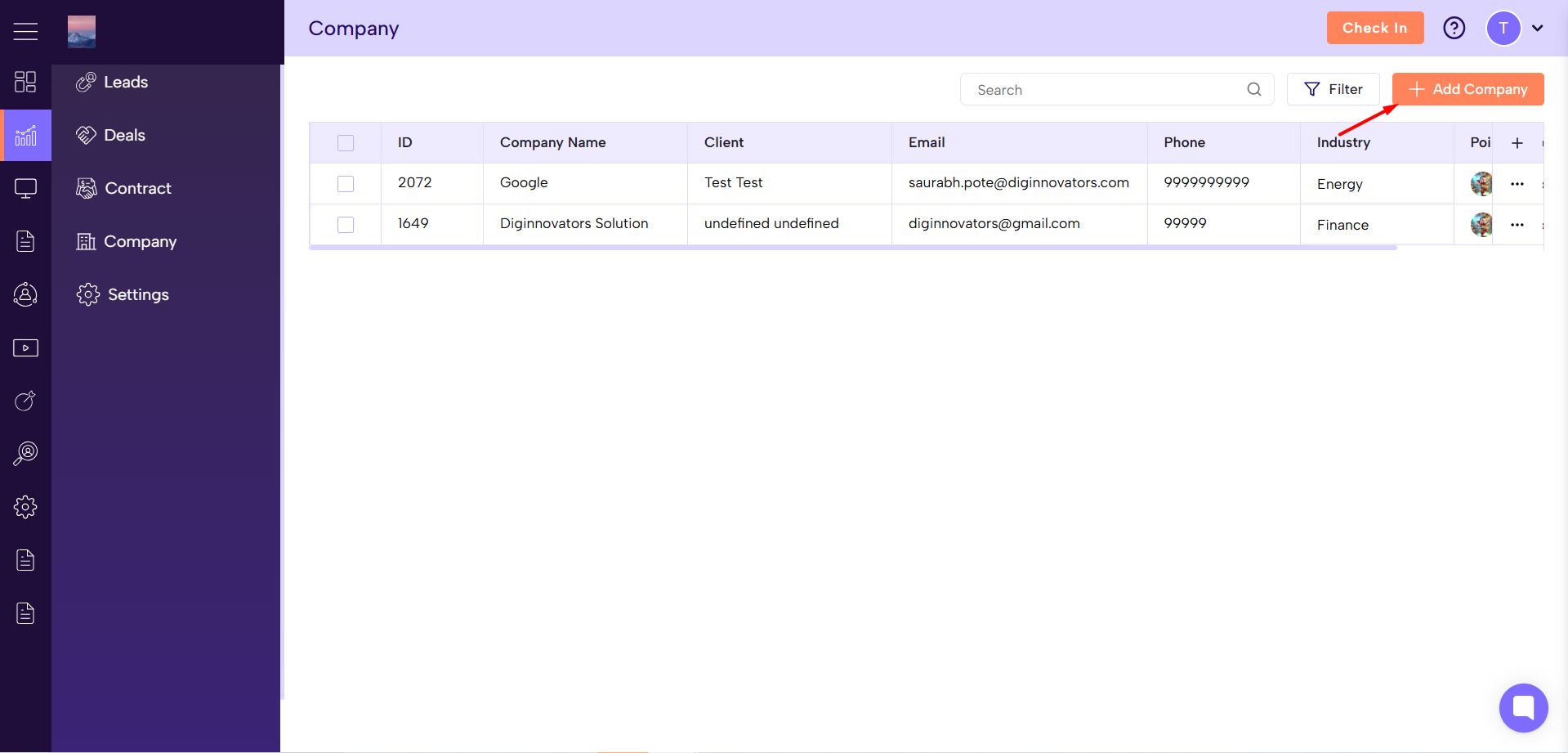
Go to Sales Module → Company Section
Click on the “Add Company” button to open the company creation form.
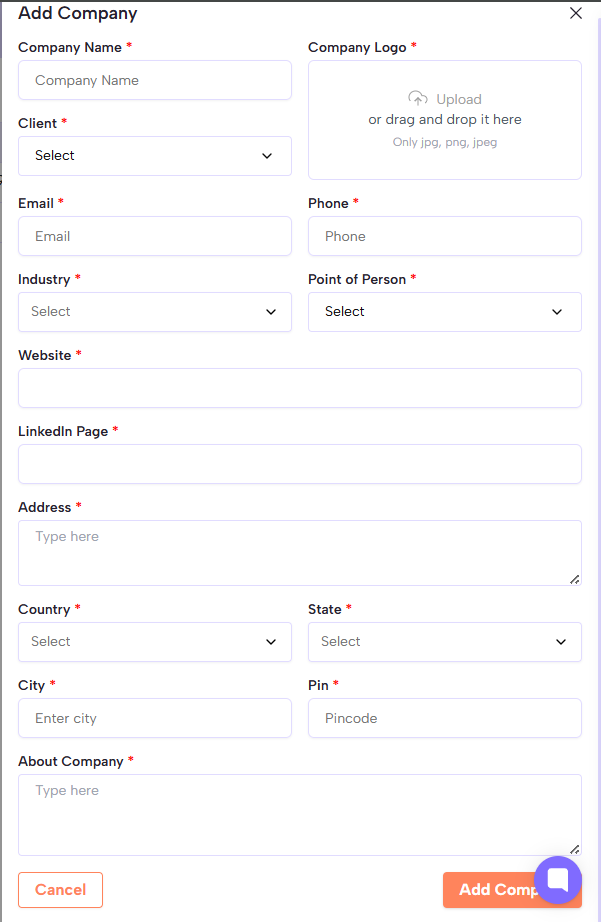
Enter Company Details
Company Name – Enter the full name of the company.
Client – Select the associated client from the dropdown list.
Company Logo – Upload the company’s logo (supported formats: JPG, PNG, JPEG).
Email – Enter the company’s official email address.
Phone – Provide the company’s contact number.
Industry – Choose the industry the company belongs to.
Point of Person – Select the main contact or representative for the company.
Website – Add the company’s website URL.
LinkedIn Page – Enter the company’s LinkedIn profile link (optional).
Address – Type the company’s complete address.
Country – Select the country where the company is located.
State – Choose the corresponding state.
City – Enter the city name.
Pin – Add the area’s pincode.
About Company – Write a short description about the company, its services, or background.
Save the Company
After filling in all required fields (marked with *), click “Add Company” to save.
The newly created company will now appear in the Company list for easy access and management.